
Get started with MCPTotal and ChatGPT
See how to sign up, add apps to an MCPTotal space, and use that space in ChatGPT.
This get-started guide is designed for developers and power users who want to explore using MCPTotal's features from ChatGPT. The guide details the process for integrating Slack and Gmail. It covers creating an account, adding the apps, and connecting to and using an MCPTotal space from ChatGPT. It uses the example of generating a summary of a Slack channel and emailing it using Gmail.
Note: If you’ve followed the Get started with MCPTotal guide, you can skip to the Connect to ChatGPT step.
Prerequisites
To follow this how-to guide, you need a:
- Slack account with a channel you want to summarize.
- Gmail account.
- A ChatGPT subscription that enables you to add MCP servers, such as ChatGPT Personal Pro or Business.
Sign up to MCPTotal
- On the MCPTotal homepage, click Sign Up for Free.
- Click Continue with Google, choose your Google account, and click Continue when prompted to Sign in to MCPTotal.
Tip: You can also sign up using your email. If you do, you’re sent a verification link to create your account.
You now have free access to MCPTotal and can create up to 2 spaces, each with up to 5 apps.
Access your spaces
Spaces are the foundation of MCPTotal, providing secure, sandboxed runtime environments for your MCP applications. They include a built-in MCP gateway that monitors traffic for logging and security.
MCPTotal opens in your dashboard. To access your spaces:
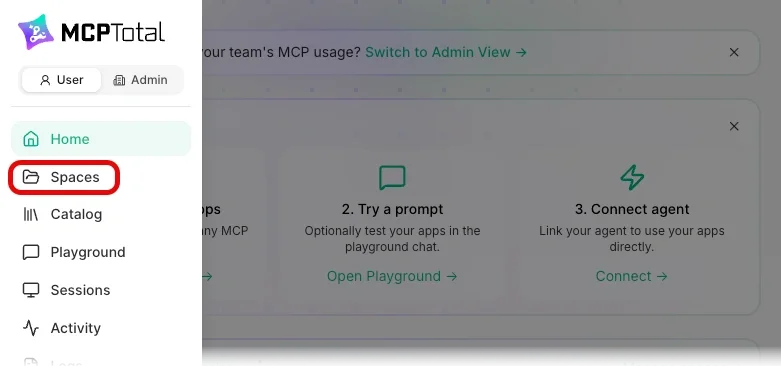
- In the menu, click Spaces.
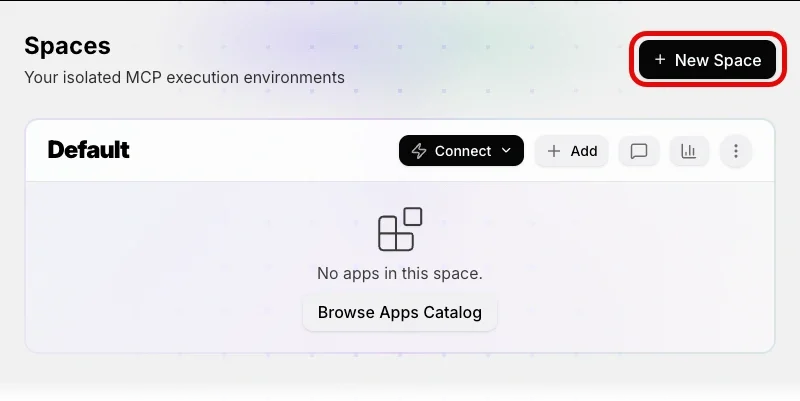
- To get you started, there is a default space. If you want to create a new space, click + New Space.
Add apps to your space
For this example, you add the Slack and Gmail apps.
Add Slack
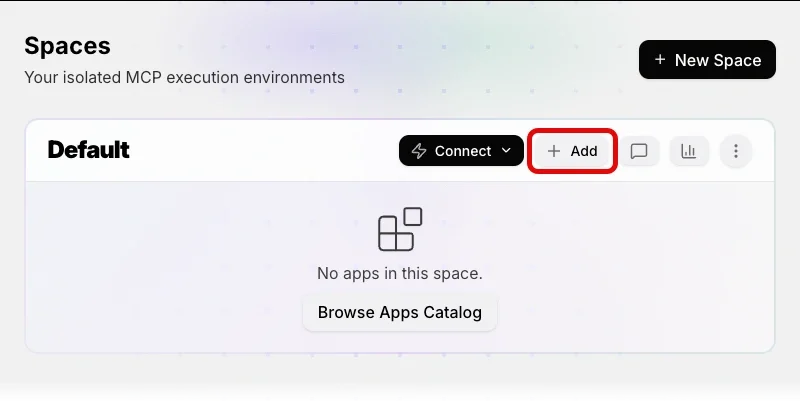
- In your space, click Add (or Browse Apps Catalog).
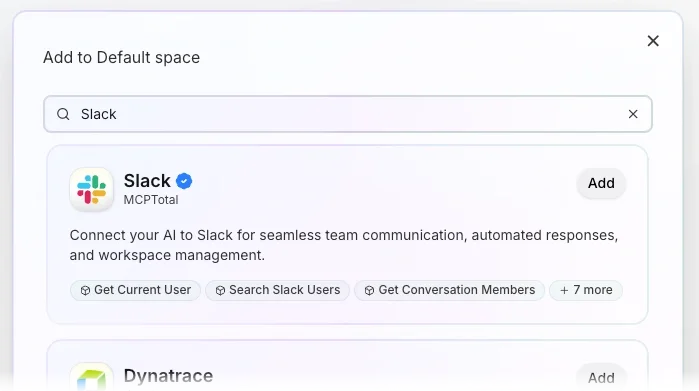
- In the search box, enter Slack.
- In the Slack tile, click Add.
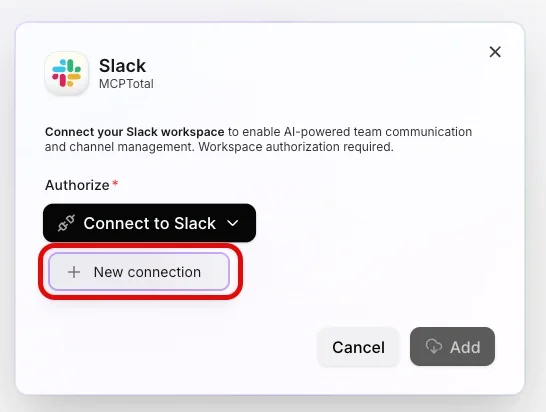
- A pop-up displays information about the Slack MCP server.
- Click Connect to Slack and New Connection.
- If necessary, sign in to your Slack account.
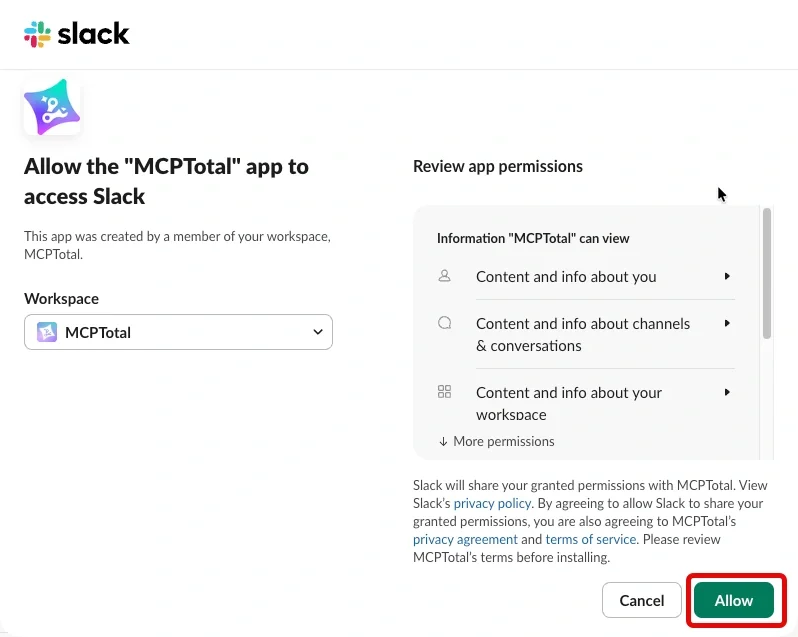
- Slack provides information about the abilities you're granting to MCPTotal. Click Allow to grant the permissions.
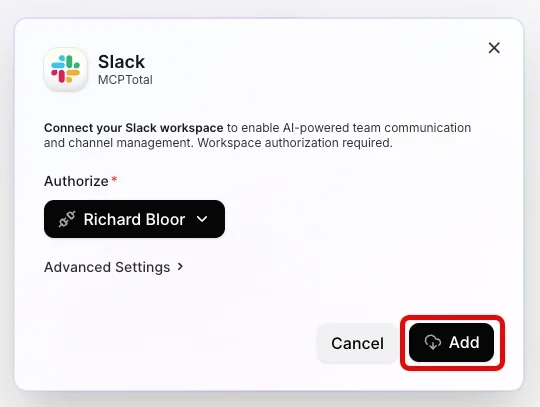
- Click Add.
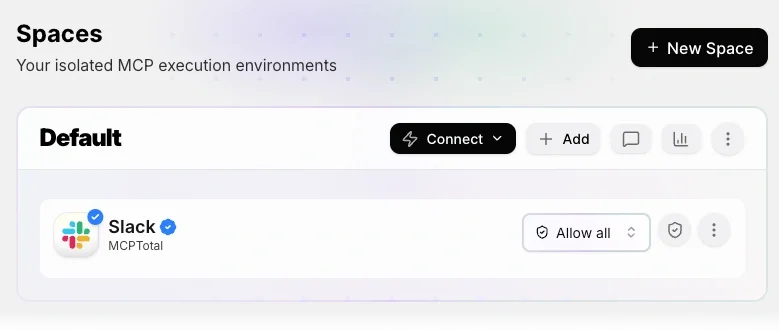
You see Slack added to your space.
Add Gmail
To add your second and any subsequent apps to your space:
- In your space, click Add.
Tip: If Add is not visible in the space, you can also find it in the space's hamburger menu. - In the catalog pop-up, enter Gmail in the search box.
- In the Gmail tile, click Add.
- A pop-up displays information about the Gmail MCP server.
- Click Connect to Gmail and New Connection.
- If necessary, sign in to or select your Gmail account.
- Gmail provides information about the abilities you're granting to MCPTotal. Click Allow to grant the permissions.
- Click Add.
You've now set up the MCP server resources you need to undertake your task.
Connect to ChatGPT
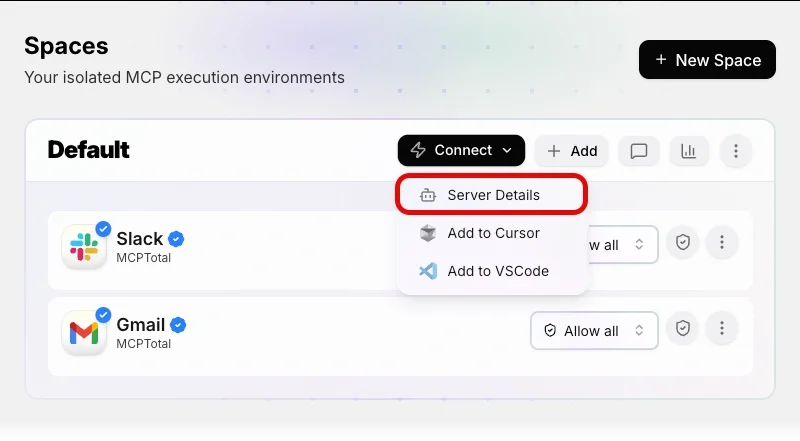
- In your space's tile, click Connect and then Server Details.
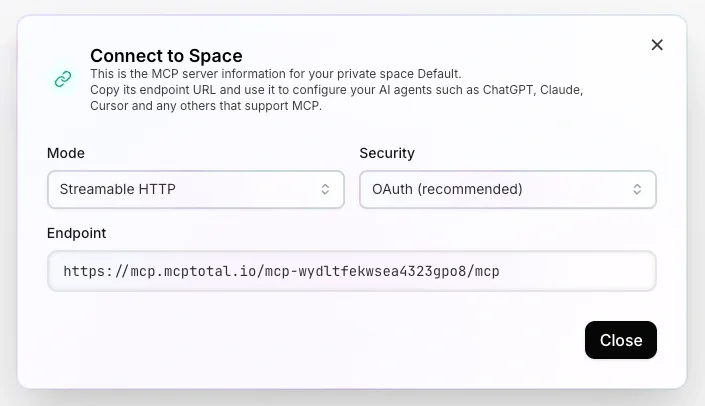
- For ChatGPT, you can use the default settings: Streamable HTTP mode and OAuth security.
- Hover over the endpoint field and click the copy icon to copy the endpoint URL.
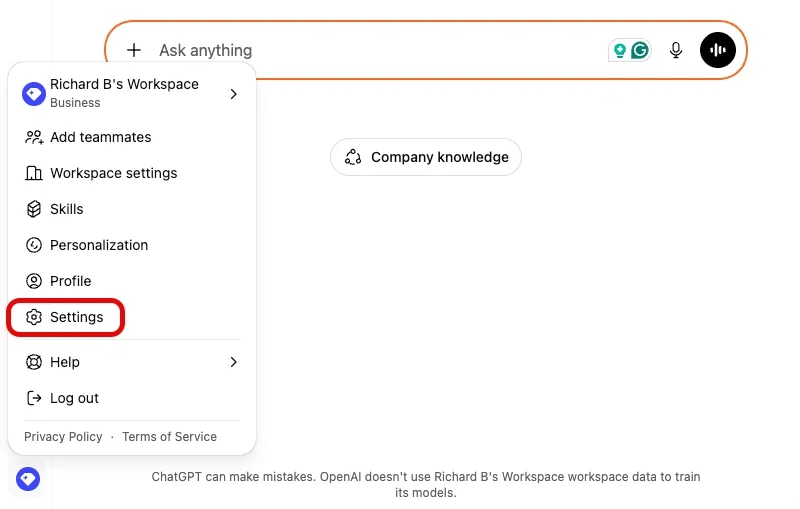
- In ChatGPT, under your account, open settings.
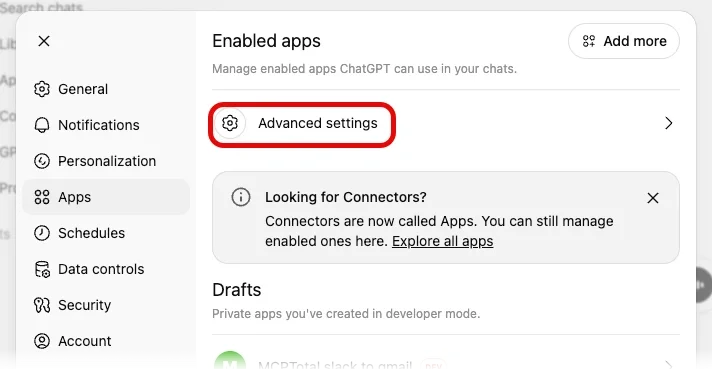
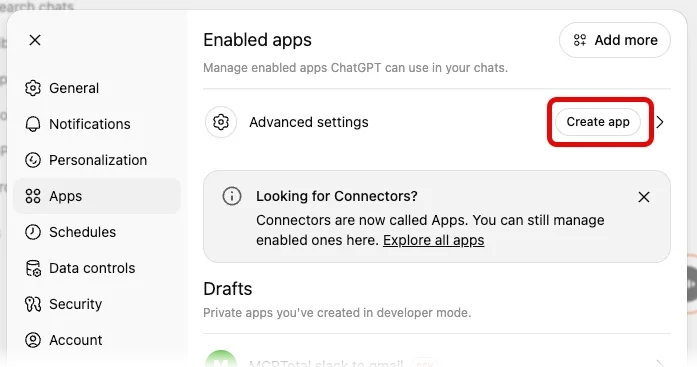
- In settings. click Apps, then open Advanced settings.
- Activate developer mode.
- Click Back to return to the apps list and click Create app.
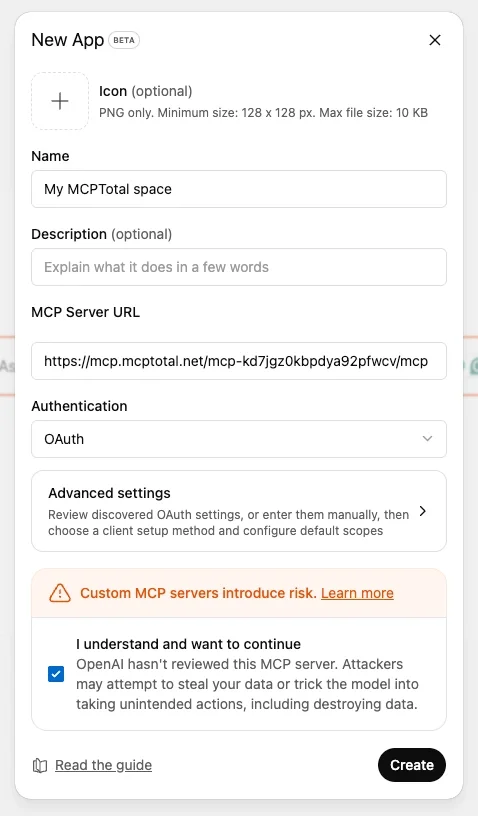
- Give the app a name and add the endpoint for your MCPTotal space. Accept ChatGPT's risk disclaimer.
- Click Create.
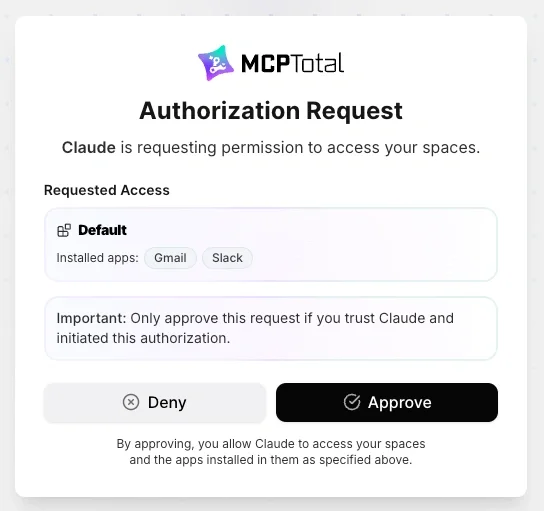
- In the Authorization Request dialog, click Approve.
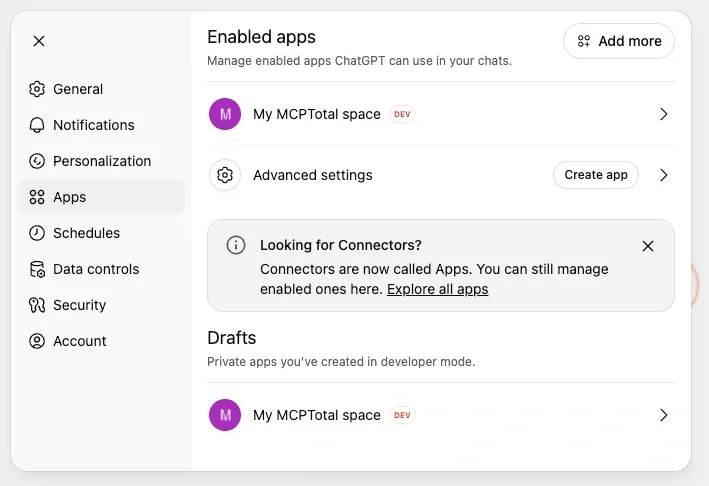
- Your MCPTotal server is now available to ChatGPT.
Use your MCPTotal space
- If you haven't done so already, close the settings dialog.
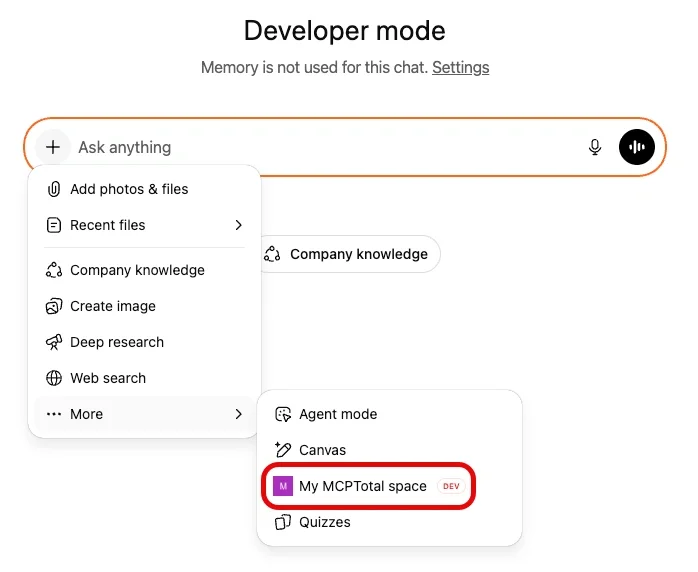
- Start a new chat. In the chat box, open the Add files and more menu, click More, and select the app you added.
- Enter "Summarize the topics discussed in the Slack #programming channel over the last six months and immediately email the summary to [email address of your choice]".
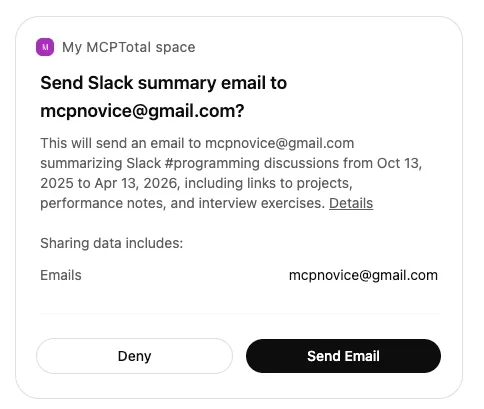
- ChatGPT prompts you to authorize fetching mandatory instructions, accessing Slack, and accessing Gmail. Approve each of these.
- You see ChatGPT retrieve the information from the Slack #programming channel and send the email.
Review the channel summary in Gmail
- In Gmail, open your Sent folder and locate the email sent to your recipient.
- You find the email contains information about the topics discussed in the channel.
Conclusion
In this how-to, you've seen how to create a sandbox space in MCPTotal, add apps to it, and then use it in ChatGPT to perform a helpful task.