
Model Allow and Block Lists for Cursor and Claude Code
Which model writes your code is now a policy decision you can enforce. From today, Autonomous Security lets you keep a model allow list or block list for Cursor and Claude Code, per app: block the models you haven't approved, or allow only the ones you have. In the same release, blocking prompts from an unapproved organization account covers Cursor teams, as it already did for Claude Code.
Why restrict models in Cursor and Claude Code
Coding agents let each developer pick a model from a menu, and the menu changes every few weeks. Most choices are fine. Some aren't, for reasons that have nothing to do with how good the model is:
- your legal team approved one provider's terms and not another's;
- a new model shipped yesterday and nobody has reviewed how it handles your code;
- a customer contract says which providers may process their data;
- one model costs far more than another, and the agent picks it for every small task.
Until now, the answer was a policy document and hope. A security team could ask developers which models they use, but couldn't see it, let alone hold the line.
Seeing which models are in use
Before you write a rule, look. The Activity Usage view and a model filter show which models your agents actually use, across the fleet. Most teams find a long tail: a model one team tried for a week, a preview model someone left on, a provider nobody remembers approving. That list is where the policy starts.
Model allow list or block list, per app
The Models policy takes one rule per AI app, in one of two shapes:
- Block listed: the models you name are blocked on that app, and every other model is allowed. Use it to take one model off the menu while you review it.
- Allow only listed: only the models you name may be used on that app, and every other model is blocked. Use it when you have an approved list and want new models to wait for review by default.
An app with no rule is unrestricted. The two apps can have different rules: a block list on Cursor while you review one model, an allow list on Claude Code because your agreement covers exactly two.
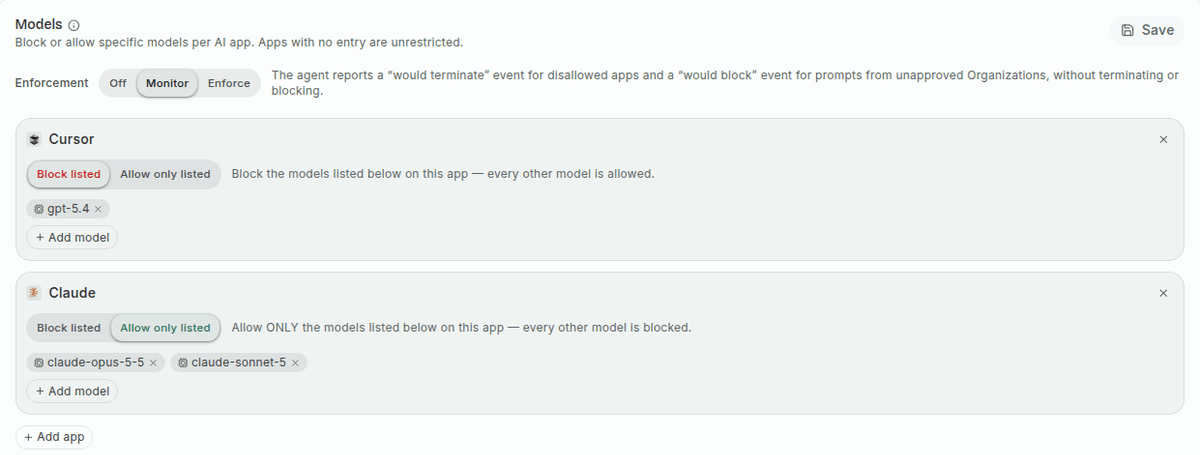
Like every enforcement in Autonomous, it is off by default and has three modes. Monitor reports what would have been blocked without blocking it, so you can see who your rule would stop before it stops them. Enforce blocks the call, and the developer can switch to an approved model and carry on.
Cursor teams: the account matters too
The model is one half of the question. The other is whose account the agent is signed in to. A developer can run Cursor under the company's team, a personal team, or a team that belongs to a previous employer or a client. The code and prompts are the same; who holds them afterwards is not.
In July we added blocking of prompts from supported AI apps signed in to an organization account you haven't approved, Claude Code among them. From today it covers Cursor's teams too. The team IDs were already visible in the console, so you can approve your company's team, leave the rest unapproved, and in Enforce, prompts sent under an unapproved team are blocked.
Together, the two answer what a security team actually needs to know about a coding agent: which model it may use, and on whose account.
An example
A security team approves two Claude models for Claude Code and blocks one new model in Cursor while legal reviews its terms. It runs both rules in Monitor for a week and finds three developers on the blocked model and one team using a personal Cursor team for company work. It tells them, waits a few days, and turns on Enforce. The next time someone picks the blocked model, or sends a prompt from the personal team, it is stopped.
No one had to collect screenshots of settings, and no one had to trust that the settings stayed put.
Start with what you have
If your developers use Cursor or Claude Code, the fastest way to know where you stand is to look at the models they already use. Start a free trial for Cursor or Claude Code, and write your first model rule in Monitor. For what else runs on those endpoints, see how the endpoint agent inventories shadow AI.
Related posts
Block Personal AI Accounts and Unapproved AI Apps
Block prompts from personal and unapproved AI accounts, stop disallowed AI apps on Windows, macOS and Linux, and see what was blocked on the Enforcement page.
Read More
AI Agent Data Leakage: Catch the Read, Then the Send
AI agent data leakage happens when a session reads sensitive data and then sends it somewhere you don't trust. Autonomous now flags or blocks that send.
Read More
AI Security in Your SOC: API, Webhook and IBM QRadar
Scoped API keys, a findings API and webhook in beta, and an IBM QRadar integration bring AI agent findings and audit logs into the tools your SOC already uses.
Read More