
ChatGPT Desktop and Codex Security, at the Prompt
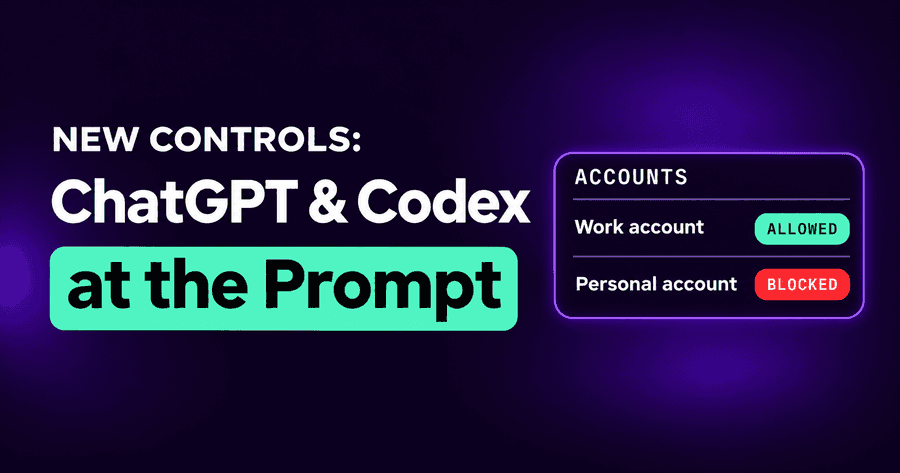
ChatGPT Desktop and Codex are now governed at the prompt. When someone using the ChatGPT desktop app is signed in to an account you haven't approved, or picks a model your policy doesn't allow, Autonomous stops that one prompt before it is sent, and the app keeps working. The same model rules now cover Codex, in the terminal and on the desktop. And for AI apps that offer no way to stop a single prompt, enforcement can still act: the app is closed, and the person is told why.
Why ChatGPT Desktop security needs more than allow or block
In July we shipped blocking for personal AI accounts and unapproved AI apps. For most AI coding tools, blocking an unapproved account meant blocking its prompts, one by one, while the developer kept the tool. A few desktop apps didn't allow that. For them, the policy could only act on the app as a whole.
ChatGPT Desktop was one of the apps people asked about most. It is a sanctioned tool in many companies, which pay for a ChatGPT Enterprise or Team workspace. The risk isn't the app: it is the app signed in to someone's personal account, or to a workspace the company doesn't control, where none of the company's retention terms or admin settings apply. Treating that as "allow the app or stop the app" is the wrong trade. Stopping it punishes everyone using it correctly; allowing it lets the personal account through.
Prompt-level enforcement for ChatGPT Desktop
From today, the current ChatGPT Desktop app is governed the way Cursor and Claude Code are:
- Unapproved accounts. A prompt from the app while it is signed in to an organization you marked as unapproved is blocked before it is sent. Switch to the company workspace, and the next prompt goes through.
- Models. A model your policy doesn't allow is blocked at the prompt, as in Cursor and Claude Code.
- Guardrails and MCP policies apply to the app's activity as they do to other enforced agents.
ChatGPT Desktop isn't closed for an account or model decision: the prompt is stopped instead. The person sees that the prompt was blocked, and why, and can fix it themselves. Older releases of ChatGPT Desktop are still governed at the app level, so keeping the app current is part of the rollout.
Codex model governance
The same change brings model allow and block lists to Codex: the CLI, the Codex desktop app and ChatGPT Desktop, which share a runtime. Our model allow and block lists post covered Cursor and Claude Code; Codex now follows the same rule in the same policy. Allow only the models your legal and data teams have reviewed, or block the ones they haven't, and a prompt to a model outside that list is stopped before it reaches the provider. An approved model passes untouched.
A model the app doesn't report follows the posture of your rule: an allow list treats it as not allowed, and a block list lets it through. That is a deliberate choice: an allow list is a promise about what runs, so it shouldn't wave through what it can't name.
When an AI app offers no controls
Not every AI app gives a security tool a place to stop a prompt. Some desktop apps take the prompt and send it, and the first anyone knows about it is after the fact.
For those apps, a model or organization rule in Enforce can now act on the app itself. When the app is seen running a disallowed model or signed in to an unapproved organization, it is closed, and the person gets a notice that says why, at the same moment. There is no silent kill: the notice is part of the action. (If you turned off block notifications for your users, the app is still closed, without the banner.)
Then the person can reopen it. The reopened app works, which is their chance to switch to the company account or an approved model: the point is to get them onto the right account, not to make the app unusable.
Both kinds of violation are recorded with the app, the user and the endpoint, so the Enforcement page shows what was stopped beside every other decision. In Monitor, nothing is closed: you see what Enforce would have done.
An example
A security team approves its ChatGPT Enterprise workspace and marks personal ChatGPT accounts as unapproved. They also keep an allow list of two models for Codex.
Over a week in Monitor, the would-block rows show three people using ChatGPT Desktop on personal accounts, and one developer running Codex with a model that isn't on the list. The team talks to the four of them and switches to Enforce.
The next week, a contractor's laptop sends a prompt from ChatGPT Desktop signed in to a personal account. The prompt is blocked; the app stays open; the contractor signs in to the company workspace and carries on. Nobody had to uninstall anything, and the security team didn't have to decide between banning ChatGPT Desktop and trusting every account on it.
Rolling it out
Start where the earlier controls start: see which accounts and models are actually in use, decide, run Monitor, read the would-block rows, then enforce. If your organization rules are already in place for other agents, ChatGPT Desktop picks them up from the same policy; Codex picks up your model lists once you add it to them.
If ChatGPT is where your company's AI use concentrates, our ChatGPT security page covers the rest of it, including ChatGPT in the browser.
Try it with Codex and ChatGPT Desktop
See which accounts and models your developers' ChatGPT and Codex sessions actually use before you block anything. Start a Codex security free trial, and begin in Monitor.
Related posts
AI Security Admin Controls: IP Allowlist, OWASP and MITRE
A console IP allowlist, one Enforcement tab that names the deciding rule, OWASP and MITRE tags on findings, AI spend priced per vendor, and session export.
Read More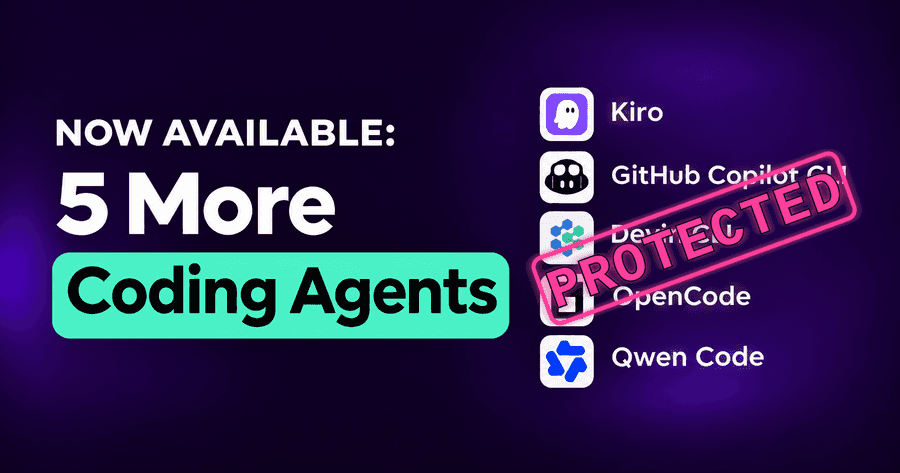
Security for Kiro, Copilot CLI, Devin, OpenCode and Qwen
Kiro, GitHub Copilot CLI, Devin CLI, OpenCode and Qwen Code now get the same guardrails, MCP policies and inventory as the rest of your AI coding agents.
Read More
Model Allow and Block Lists for Cursor and Claude Code
Choose which models Cursor and Claude Code may use: block listed models or allow only approved ones, and block prompts from unapproved Cursor teams.
Read More