
AI Security Admin Controls: IP Allowlist, OWASP and MITRE
Security teams buy AI agent security to see and control what agents do. Then they live with it every day, and what matters becomes the administration around it: who can open the console, whether you can explain a block, whether a finding maps to the framework your auditors use, what AI costs. This roundup covers the AI security admin controls we shipped over the last few weeks: a console IP allowlist, one Enforcement tab that names the rule behind a decision, OWASP and MITRE tags, AI spend priced per vendor, and session export.
A console IP allowlist, without the lockout
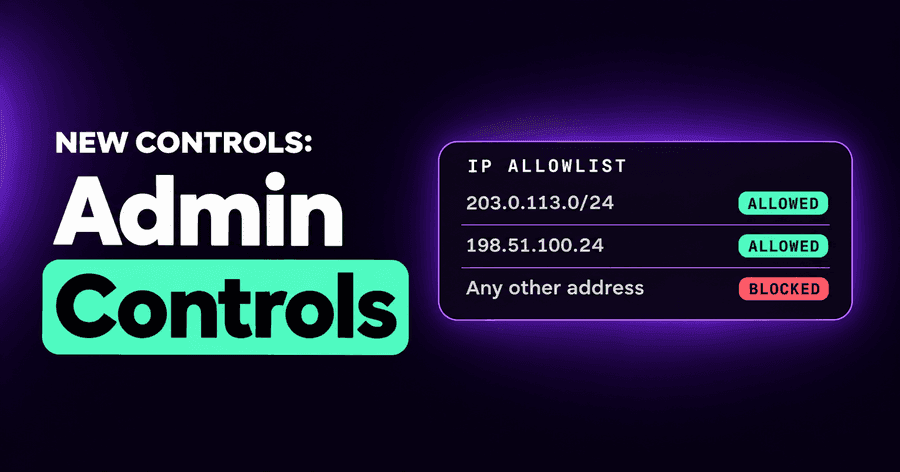
The console holds your AI policies and your AI activity. Many organizations require that a console like that be reachable only from the office network or the VPN. Settings → Organization now has an IP allowlist: list the addresses and ranges, IPv4 or IPv6, each with an optional label.
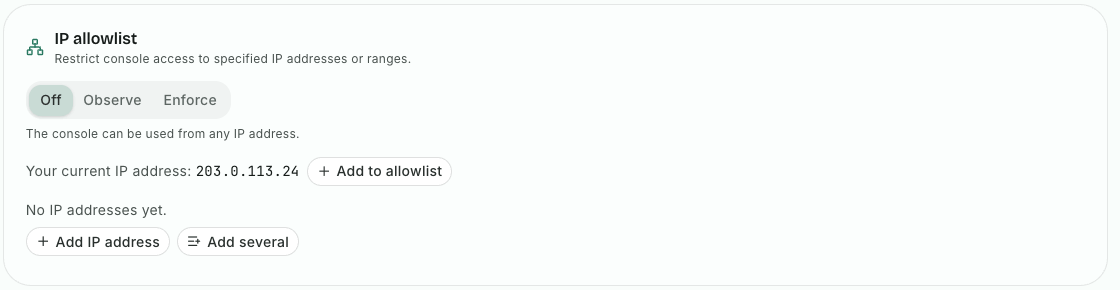
It has three modes. Off is the default. Observe blocks nothing and records every console use from an address not on the list in the audit log, so you find the home office or the forgotten VPN range before anyone is locked out. Enforce restricts the console to the list. The card shows your own current address with a button to add it, and a save that would lock you out is refused. The allowlist applies to the console only: the endpoint agent, MCP clients and API keys keep working.
One Enforcement tab, every decision, the rule that made it
A block is only as good as your ability to explain it. Activity's Enforcement tab now lists every decision the platform made, once, whatever made it: the endpoint agent, a gateway, or a cloud integration. Blocks and redactions, apps stopped, unblocks, gateway tools removed, and what monitor mode would have blocked are all there, filterable by decision, action, type and source.
Where the platform recorded the rule that decided it, the row names it, and the name opens that rule in the policy editor. Default means no rule matched and the default decided; a dash means no rule was recorded for that decision. You can filter Sessions and Enforcement by rule too, which turns "what does this rule actually do?" into a list, and makes moving a rule from monitor to enforce a decision made on evidence.
OWASP and MITRE tags on findings
Your auditors, your board and your SOC already speak frameworks. Findings now carry tags from the OWASP Top 10 for LLM Applications (2025), the OWASP Top 10 for Agentic Applications (2026), MITRE ATLAS and MITRE ATT&CK, where a finding maps to them. A tag says which risk or technique the detection behind the finding is aimed at, the way SIEM content is mapped to ATT&CK, so you can read it the way you read the rest of your detections.
The tags appear in the finding and session drawers. A Framework filter on Findings and on Activity's sessions answers "show me everything mapped to this risk" in one click. Findings export to CSV with their tags, for the spreadsheet your audit asks for. And the tags travel: they are in the public API and the findings webhook (both in beta), and in the guardrails audit events your SIEM receives.
What AI costs, by model, app and OS user
AI spend is a security question as much as a finance one: the model nobody approved, the agent left running all weekend. Activity's Usage tab is now the place for it. It estimates what your organization spends on AI models from the tokens your agents report and public list prices, over 7, 30 or 90 days, by model, by app or by operating system user. The figures are estimates, not a vendor invoice, and the tab says so.
The same model often costs different amounts depending on where it is served. The estimate now prices a model by the vendor and region serving it, where their price differs, instead of one price for every route.
Export what a session said
Some questions need the content, not the summary: an incident, a legal hold, a review with the team that owns the agent. On Activity's Sessions tab, Export downloads the content of the sessions your filters match, their prompts, tool calls and parameters, as one JSON file. Filter by person, endpoint, app or time range first, and the export follows. With people now identified across accounts, "everything this person's agents did last week" is a filter and a click.
Why these matter
None of these is the reason someone first looks at AI agent security. All of them are the reason a security team can run it: access you can restrict, decisions you can explain, findings that map to the frameworks you report on, costs you can see, and evidence you can take with you. Our pricing page has the plans.
Try it
Want to see these controls on your own AI agents? Start a free trial: we'll walk you through the platform and set it up with you.
Related posts
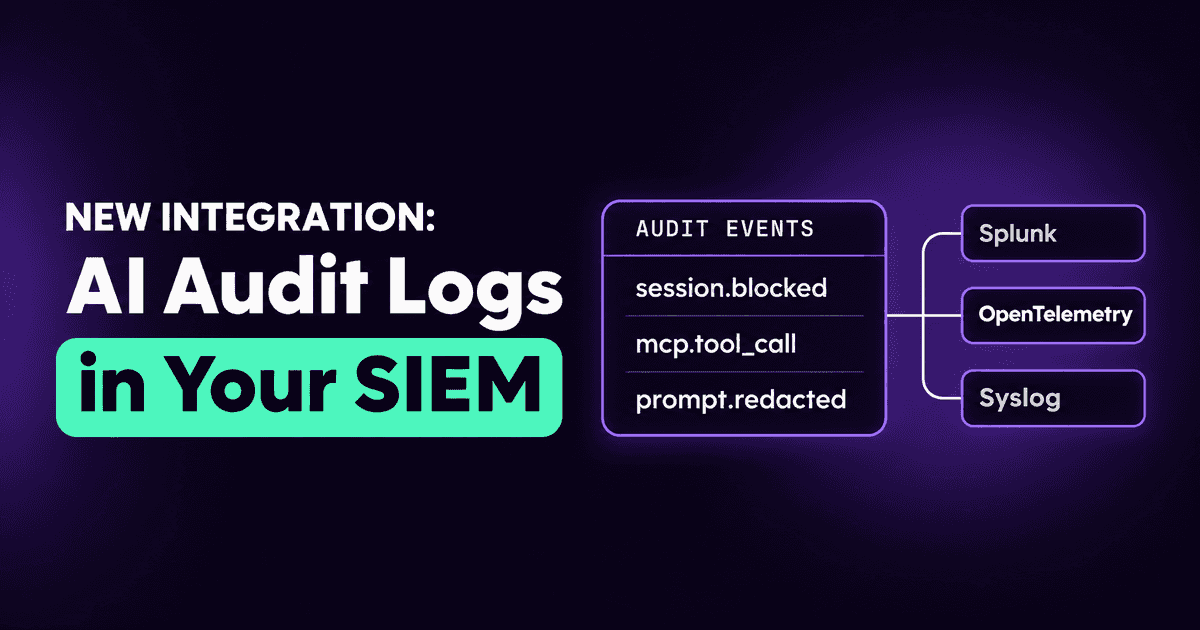
AI Audit Logs in Your SIEM: Splunk, OpenTelemetry, Syslog
Stream the AI agent audit trail to Splunk, any OpenTelemetry collector, syslog or Coralogix, with the same event filters as Slack and webhooks.
Read More
AI Security in Your SOC: API, Webhook and IBM QRadar
Scoped API keys, a findings API and webhook in beta, and an IBM QRadar integration bring AI agent findings and audit logs into the tools your SOC already uses.
Read More
Block Personal AI Accounts and Unapproved AI Apps
Block prompts from personal and unapproved AI accounts, stop disallowed AI apps on Windows, macOS and Linux, and see what was blocked on the Enforcement page.
Read More